What Software to Choose for Dental Picture Management and Editing?
Over the last 6 years in dental photography, I have found that SOFTWARE is a much greater challenge than the choice of camera, lens, flash, or even basic settings. Why? Because while the fundamentals of photography don’t change, software changes every year, and sometimes more often than that! Not only that, there is a huge range of software choices available, and that’s AFTER you’ve decided if you’ll use your dental practice management software or not.
When it comes to choosing the right software to manage your photo catalog, there are two basic choices:
- Dental Practice Management Software, i.e. Open Dental, Eaglesoft, Dentrix,Curve, etc
- Photography software, i.e. Adobe Photoshop, Gimp (freeware), Apple Aperture, XARA, and many more.
While I could give a moderately complete review of the abilities and limitations of all of them, that would be a big waste of time for one very simple reason: almost all dental-specific software has so many limitations in terms of editing and cataloging, that there is not really a good reason to consider them in my not-so-very-humble opinion. 😀 There IS one program that I will be testing soon that may prove me wrong, and I will absolutely give a thorough review of it once I’ve had the chance to play with it.
Why Adobe Photoshop Lightroom for Dental Photo Catalogs
I discussed this topic in February 2010 here, but I’d like to continue with reasons I use Photoshop Lightroom for all my current home and professional photography catalogs and give some screenshots that will show more detail. Here’s a screenshot of the usual starting screen in Lightroom, the Library module.
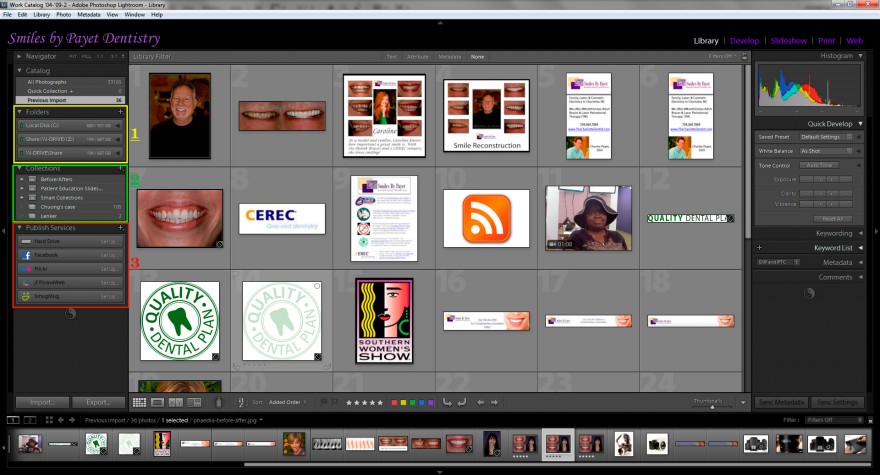
Let’s look at the colored boxes on the two sides closer-up:
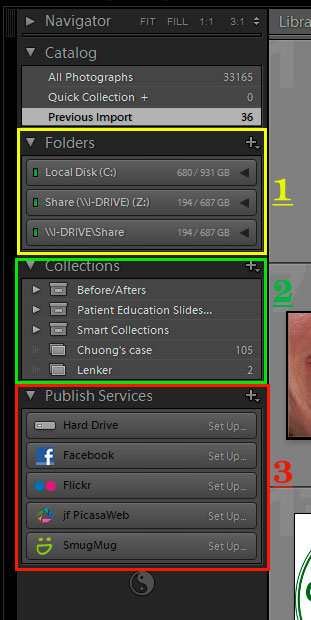
 #1 Managing Multiple Folders On Multiple Drives:
Over time, one can accummulate a very large catalog of images, and backup becomes critical. Lightroom allows one to manage photos across multiple drives, both internal and external, even on your office server. My brother-in-law is a wedding photographer, and he has 6 1-TB external HDs connected to his Mac, and Lightroom easily allows him to view all of them. You can do most anything from here that you would do from Windows Explorer: move images or folders, set up a folder structure for easy organization, etc.
#2 Create Customized Collections & Smart Galleries
Lightroom lets you create customized collections, which is wonderful for putting together groups of photos that you may want for showcasing, printing, putting on the web, etc. You can make these “Smart” Collections by setting rules that will go through all the tags you apply to photos and automatically add them to the appropriate collection based on those criteria.
#3 Publishing Services
This is one of the most powerful parts of Lightroom IMO! You can set up links within LR to a number of social media sites such as those shown here. I don’t have these set as they are in my work backup catalog on my home PC — they’re all working at the office. But with these, it is as easy to upload photos to these sites as highlighting the ones you want, dragging them to the Publish Service you want, and clicking the Publish button (after they’re set up, of course).
Basic Editing & Keyword Tagging
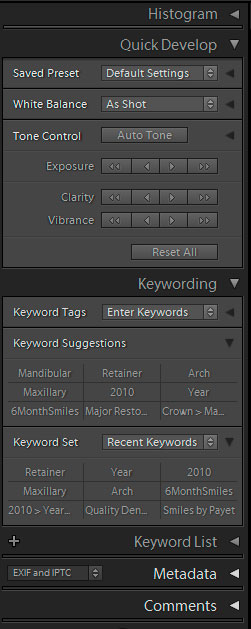
Looking at the opposite side, you see where you can start doing some basic editing and keyword tagging, and for many dentists, this may be all you need, depending on how consistent you are when you take the pictures. It can take a little bit to set up a keyword hierarchy, and it’s not uncommon to go back and clear out duplicates and find you need to reorganize, but it’s not all that hard.
(more info coming soon)