When it comes to saving all your patient photos, if you are not doing it through your Practice Management Software (PMS), you need a structured format to make it easy to save future photos and to be able to find past ones. The folder format that I use within Lightroom is one I learned from my Dad, a highly organized businessman, with just a few tweaks.
Organizing Dental Pictures with Folders in Lightroom
In many ways, Lightroom acts much like Windows Explorer or Mac Finder, in that you can create and move folders to organize your pictures. The easiest way to do this is during the Import process, when you create the folder into which you want the pictures to go. (There are some important differences to be addressed later.) If needed, however, you can create additional folders in PC versions as usual by Right-clicking on the folder in which you want to create a new one.
Start with a Basic Folder Structure by Year > Procedure > Patient > DOS
Within the “My Pictures” folder, here is the folder structure I’ve been using for the last 4+ years:
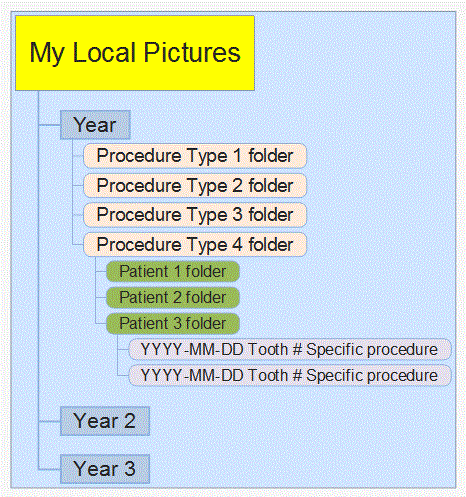
Since I do a fairly wide range of procedures, it helps me organize by type of procedure within each year, and within each procedure folder, every patient who gets that procedure has a folder, and within that, each Date of Service has a separate folder.
As long as you keep all images from one year in the same folder, you can use a date format with EITHER the Month or Year first, as in:
- YYYY-MM-DD or
- MM-DD-YYYY
Either way, the folders will stay in the correct sequential order.
ALWAYS put the Month (MM) BEFORE the Day (DD) If you don’t, you could end up with them in a very incorrect order, and it gets much harder to find the one you want.
Looking at my folders then, this is how the “big picture” is structured (click for a larger view):
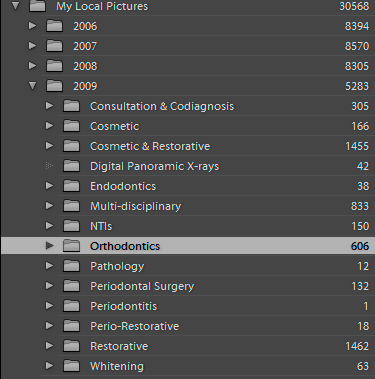
I’ve chosen this format not just for myself, but for my staff. Even though Lightroom is not networkable (regrettably), my IT company has made the “My Local Pictures” a Shared folder across the network, with an icon on every Desktop. If any of my staff ever need to look at them, they can click on that and use this easy-to-understand structure to quickly find patient photos, simply by knowing what was done, what year, etc.
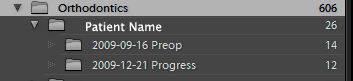
Going deeper within a patient’s folder, it will look something like this:
In an upcoming post, I’ll discuss the importance of keyword tagging your photos, and how to create a keyword heirarchy within Lightroom for easy searchability.